three simple password rules
Three Simple Password Rules
I worked for a couple of cybersecurity companies in the past decade. I’m not a security expert, but I learned a lot more about the field than most people. I’m also increasingly involved in helping seniors with their technology issues. The issue that makes me most nervous is their passwords. Too many easy passwords, and too much password reuse!
But instead of going into a ton of depth in the topic, I’m just gonna leave you with three basic rules to try to follow. You choose how safe you want to be online.
Rule 1: Use Passkeys if possible
Everyone knows how passwords work. Every site you visit or company you do business with makes you create a password to use their service. But there’s something newer and better than passwords. It’s called “Passkeys” - with a capital P. It’s not passcodes, but Passkeys. Whenever you see a website offer you to set up a Passkey with them, do it.
I won’t go deep into it, but the basics are this: The main problem with passwords is that the bad guys can steal them in a variety of ways. Passkeys make it so there’s nothing to steal. If you have a modern computer or smartphone, you’ll use your fingerprint or face scan to log in to a Passkey system. And since nobody can steal your finger or your face (except in science fiction) it’s very safe.
More, by Microsoft (one of the inventors of Passkeys, though they refuse to capitalize the word): https://support.microsoft.com/en-US/Windows/Security/Identity-Signin/what-are-passkeys-and-why-they-matter
Rule 2: If you insist on using passwords, use good ones
The bad guys - “hackers” - can figure out your password using what’s called a “brute force attack”. But the longer the password, the more time it takes. If it’s long and has special characters, it takes even longer. And if it takes them weeks or months, no hacker is going to bother. The NSA might spend weeks or months breaking Vladimir Putin’s password, but - trust me - no regular hacker is going to spend that much time to steal the password of some random civilian like you and me.
Here is a table that shows the best case (for you, the password owner) of how long it would take to “brute force” your password. Using a password length and complexity that gets you into the yellow or green part of the table is good enough. Even though faster computers can break your password in a shorter time every year, if it’s going to take 1 million years in the year 2026, there’s no way technological will improve enough in your lifetime for hackers to break your password.
Like the far right column of the table says, using a password that includes numbers, upper and lowercase letters, and symbols is the safest of all.
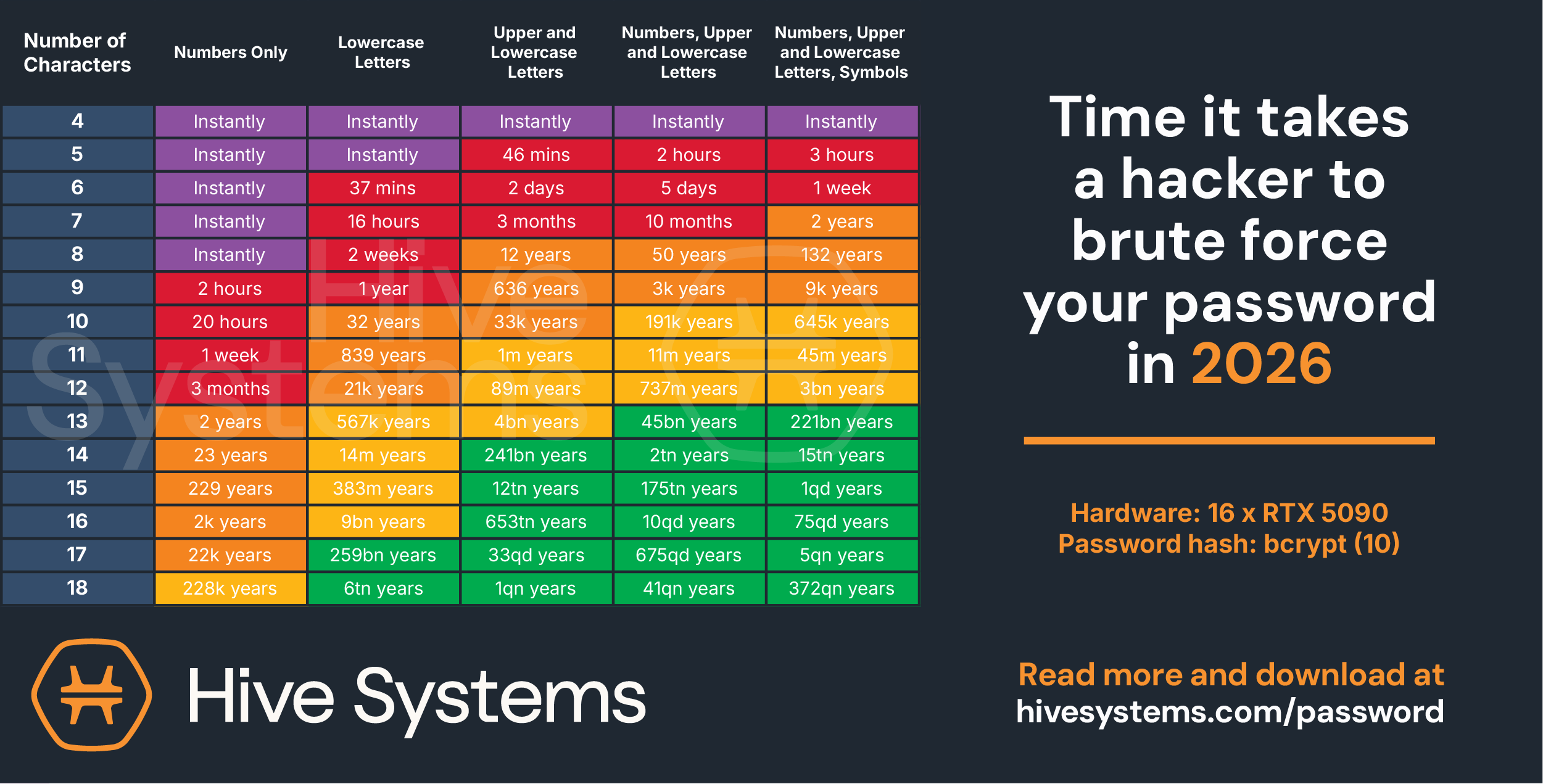 Hive Systems Password Table for 2026
(this changes every year, as technology improves)
More, by Hive Systems: https://www.hivesystems.com/blog/are-your-passwords-in-the-green
Rule 3: Use a different password for each service/site
If you have to use passwords, even if you use a complex one with many numbers, upper and lowercase letters, and symbols, it’s bad to use the same password on multiple sites. Why? Because if someone somehow gets that password, instead of just gaining access to one web site, they gain access to every site you use. It’s like using the same physical key for your front door, your gun safe, your car, and the vault at your bank with all your life savings.
But how am I supposed to remember all these long, complex passwords? You’re not. You should use a password manager tool. It will remember all the individual passwords, and provide them to your banking app or your web browser as needed, once the password manager is unlocked using your fingerprint or face.
Every smart phone has a built in password manager nowadays. I just use the Passwords app that Apple provides on my phone and iPad and laptop.
More on password managers from Wikipedia: https://en.wikipedia.org/wiki/Password_manager